Labellisation
Avant de commencer la labelisation, nous avons classé nos données en 2 catégories : - les données d’apprentissage - les données pour le test
Après il faut installer label-studio pour démarrer la labellisation

1.Les classes de labellisation
Pour notre cas, nous avons 7 classes
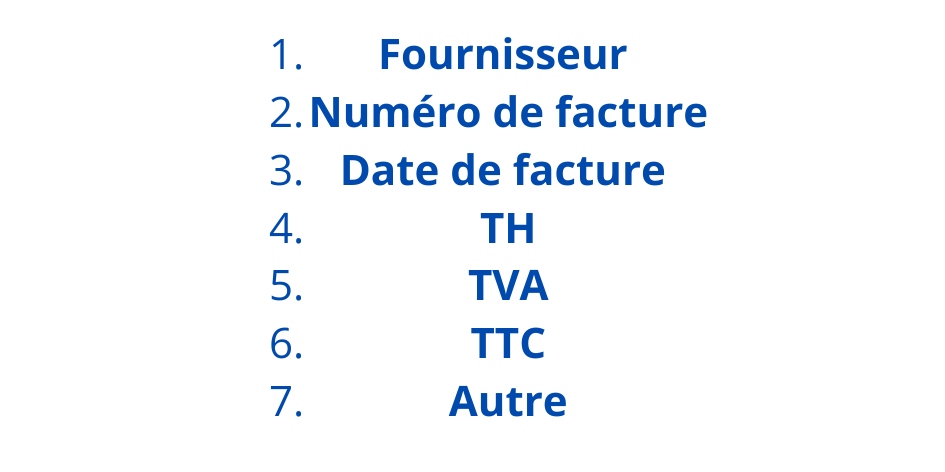
Note
l’entrée de label-studio est json-file
c’est pour cela il faut convertir les images ou bien les données d’apprentissage en OCR fichier json pour avoir la possibilité de labeliser
2.Step1 : Setup
On doit d’abord installer les bibliothèques nécessaires. Sur votre PC, vous créez une nouvel environnement anaconda avec python v3.9.18 avec la commande suivante :
Name : dans le commande est le nom de votre environnement.
conda create -n Name python=3.9.18
Aprés vous activez votre environnement :
conda activate Name
Installation de paddleOcr, label-Studio sur l’environnement creé
#CPU :
pip install paddlepaddle -i https://pypi.tuna.tsinghua.edu.cn/simple
## GPU :
#!pip install paddlepaddle-gpu -i https://pypi.tuna.tsinghua.edu.cn/simple
pip install "paddleocr>=2.0.1"
pip install label-studio==1.11.0
3.Step2: Images to OCR json file
pour transformer les images en OCR json file, nous avons utiliser le code suivant :
# Specify here the path to your training images
images_folder_path  = "PATH_TRAINING_IMAGES"
def create_image_url(filename):
   return f'http://localhost:8080/{filename}'

def convert_bounding_box(bounding_box):
    x1, y1, x2, y2 = bounding_box
    x = min(x1, x2)
    y = min(y1, y2)
    width = x2 - x1
    height = y2 - y1

    return [x, y, width, height]
import os
from paddleocr import PaddleOCR
from PIL import Image, ImageDraw, ImageFont
import json
from uuid import uuid4
import numpy as np

from paddleocr import PaddleOCR
ocr = PaddleOCR(use_angle_cls=True, lang='fr',use_gpu = False) # need to run only once to download and load model into memory
# use_gpu : use the gpu or not
def extracted_tables_to_label_studio_json_file_with_paddleOCR(images_folder_path):
    label_studio_task_list = []
    for images in os.listdir(images_folder_path):
            output_json = {}
            annotation_result = []

            print(images)

            output_json['data'] =  {"ocr":create_image_url(images)}

            img = Image.open(os.path.join(images_folder_path,images))

            img = np.asarray(img)
            image_height, image_width = img.shape[:2]

            result = ocr.ocr(img,cls=False)

            #print(result)

            for output in result:

                for item in output:
                    co_ord = item[0]
                    text = item[1][0]

                    four_co_ord = [co_ord[0][0],co_ord[1][1],co_ord[2][0]-co_ord[0][0],co_ord[2][1]-co_ord[1][1]]

                    #print(four_co_ord)
                    #print(text)

                    bbox = {
                    'x': 100 * four_co_ord[0] / image_width,
                    'y': 100 * four_co_ord[1] / image_height,
                    'width': 100 * four_co_ord[2] / image_width,
                    'height': 100 * four_co_ord[3] / image_height,
                    'rotation': 0
                            }


                    if not text:
                        continue
                    region_id = str(uuid4())[:10]
                    score = 0.5
                    bbox_result = {
                        'id': region_id, 'from_name': 'bbox', 'to_name': 'image', 'type': 'rectangle',
                        'value': bbox}
                    transcription_result = {
                        'id': region_id, 'from_name': 'transcription', 'to_name': 'image', 'type': 'textarea',
                        'value': dict(text=[text], **bbox), 'score': score}
                    annotation_result.extend([bbox_result, transcription_result])
                    #print('annotation_result :\n',annotation_result)
            output_json['predictions'] = [ {"result": annotation_result,  "score":0.97}]

            label_studio_task_list.append(output_json)


    # saving label_stdui_task_list as json file to import in label_studio
    with open("Paddle_Exemple.json", 'w') as f:
        json.dump(label_studio_task_list, f, indent=4)
    f.close()
Exécuter la fonction en haut
extracted_tables_to_label_studio_json_file_with_paddleOCR(images_folder_path)
Note
Si possible de rencontrer une erreur lors de création de fichier json, à cause de l’antivirus, pour régler il faut suivre les étapes suivantes :
Open the Windows settings.
Search for Ransomware protection.
Then, select Allow an app through Controlled folder access.
Look for the option Recently blocked apps, you’ll find conda.exe there. (This indicates that conda didn’t have access to the folders due to the antivirus.)
Add conda.exe to the allowed apps.
3.Step3: Labelliser en label-Studio
Dans un nouveau fichier .py Vous lancez un serveur local, pour servir les images de training à Label_studio :
#!/usr/bin/env python3
from http.server import HTTPServer, SimpleHTTPRequestHandler, test
import os

directory = "PATH_TRAINING_IMAGES"

class CORSRequestHandler(SimpleHTTPRequestHandler):
    def end_headers(self):
        self.send_header('Access-Control-Allow-Origin', '*')
        SimpleHTTPRequestHandler.end_headers(self)

if __name__ == '__main__':
    os.chdir(directory)
    test(CORSRequestHandler, HTTPServer, port=8080)
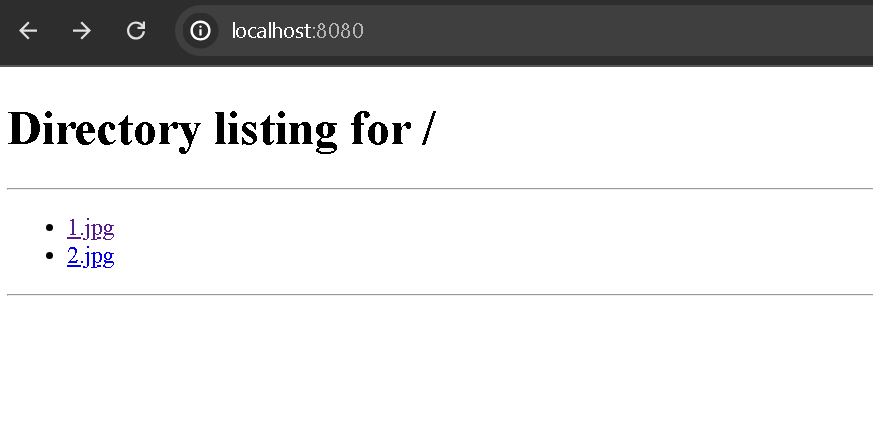
aprés lancement si vous tapper dans un browser http://localhost:8080/, vous allez voir vous images comme ceci
Vous lancez maintenant Label_studio dans la linge de commande anaconda avec un port différent par exemple 8081:
label-studio start --port 8081
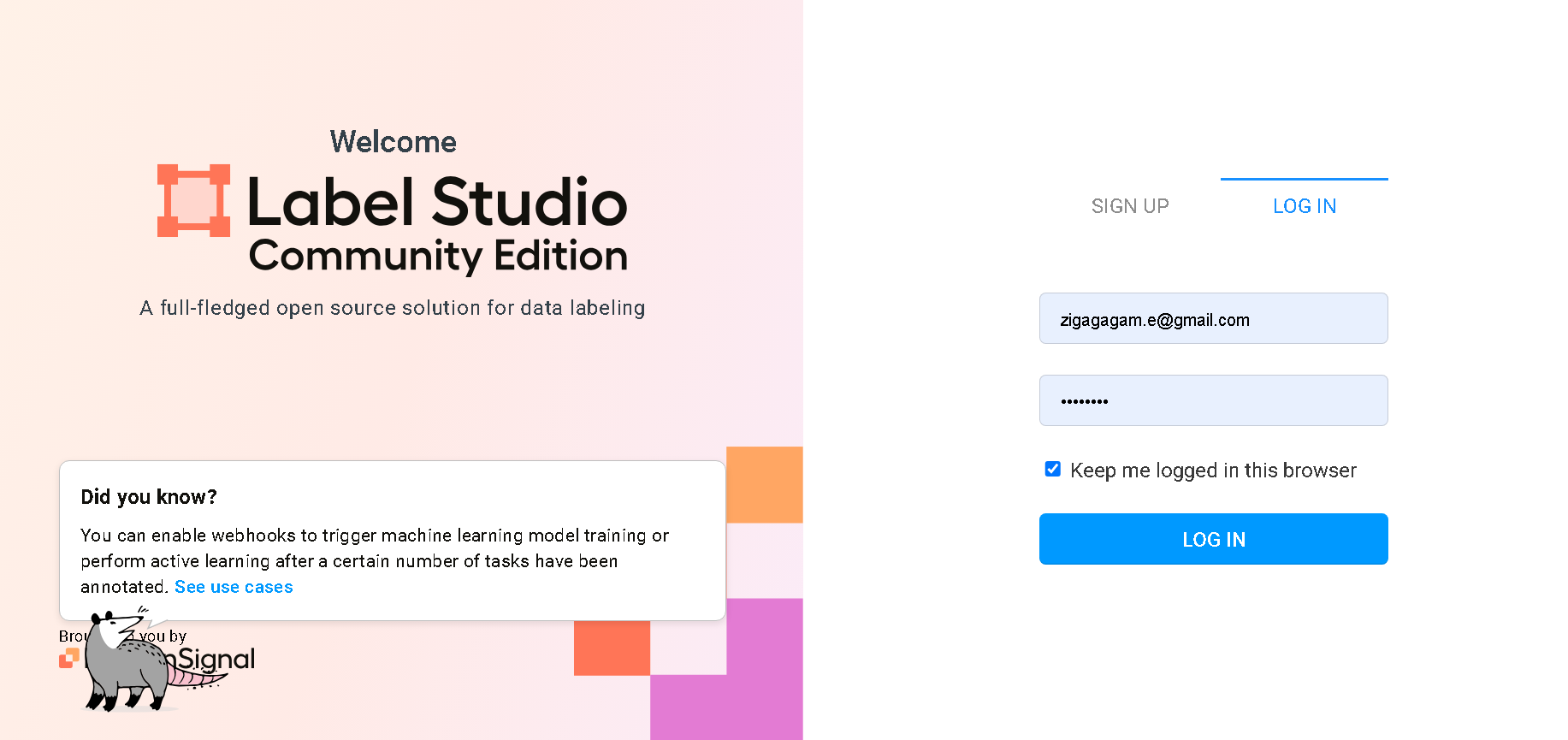
Vous créez un compte, et après Log in. La suite des étapes est expliquée dans la vidéo, c’est dessus.
4.Step4: Convertir à LayoutLM json file format:
On doit convertir le json file obtenu depuis Label_studio en une forme acceptée par le modèle LayoutLM qu’on va utiliser après.
import json

def convert_bounding_box(x, y, width, height):
    x1 = x
    y1 = y
    x2 = x + width
    y2 = y + height
    return [x1, y1, x2, y2]
label_json_path = "PATH_JSON_FILE_DE_LABEL_STUDIO"
Count = 0
# Loading json data
with open(label_json_path) as f:
    data = json.load(f)

output = []

for annotated_image in data:
    # Create a new dictionary for each image
    image_data = {}
    annotations = []

    if len(annotated_image) < 8:
        continue

    for k, v in annotated_image.items():
        if k == 'ocr':
            v = v.split('8080/')[-1]
            print(f'filename: {v}')
            image_data["file_name"] = f"{v}"
            Count += 1

        if k == 'bbox':
            width = v[0]['original_width']
            height = v[0]['original_height']
            image_data["height"] = height
            image_data["width"] = width

    for bb, text, label in zip(annotated_image['bbox'], annotated_image['transcription'], annotated_image['label']):
        ann_dict = {}
        #print('text:', text)
        ann_dict["box"] = convert_bounding_box(bb['x'], bb['y'], bb['width'], bb['height'])
        ann_dict["text"] = text
        ann_dict["label"] = label['labels'][-1]
        annotations.append(ann_dict)

    image_data["annotations"] = annotations
    output.append(image_data)


print("Number of Images annoutated",Count)
with open("Exemple_Training.json", "w") as f:
    json.dump(output, f, indent=4)
5.Step5: Encode labels in Json file Manuallly:
Il faut encoder les labels dans le fichier Exemple_Training.json c.-à-d. attribuer a chaque classe un chiffre entier 0,1.. Vous pouvez faire ça facilement sur Visual Studio Code.